
How to convert Excel to SQL safely without uploading to server?
The Hidden Risks of Online Data Converters
In the digital age, data is the new oil, but it can also be a liability if mishandled. For developers, data analysts, and database administrators, converting Excel spreadsheets into SQL database scripts is a daily routine. Whether you are migrating a legacy CRM system, seeding a development database with test data, or performing ad-hoc analysis on a client's inventory file, the need to transform rows and columns into INSERT statements is constant.
However, a dangerous habit has formed in the industry: searching for "online excel to sql converter" and uploading sensitive files to the first result that appears. This practice poses severe security risks. When you upload a file to a traditional server-side converter, you effectively lose control over that data. Where is it stored? Who has access to it? Is it deleted immediately, or does it sit in a temporary folder accessible to anyone with the URL?
For strict compliance environments like healthcare (HIPAA), finance (SOX), or European markets (GDPR), uploading PII (Personally Identifiable Information) to an unknown third-party server is a compliance violation. Yet, the alternative—writing manual SQL INSERT statements for hundreds or thousands of rows—is a productivity nightmare. It is tedious, error-prone, and slow.
Fortunately, modern web technologies have evolved. With the advent of powerful client-side JavaScript engines and the File API, we no longer need a server to process files. We can now build tools that run entirely in the user's browser, combining the convenience of an online tool with the security of a local script.
Comparison: Manual vs. Server-side vs. Client-side
To understand why client-side conversion is the superior choice, let's compare the three common methods for converting Excel data to SQL.
| Method | Security | Speed | Convenience | Reliability |
|---|---|---|---|---|
| Manual SQL Writing | High (Local) | Very Slow | Low | Prone to typos |
| Server-side Converter | Low (Uploads) | Medium (Upload time) | High | Dependent on server uptime |
| Client-side (Developer Box) | High (No Upload) | Instant | High | High (Offline capable) |
Why Developer Box is Your Best Choice
Our Excel to SQL Converter is engineered with a "Privacy First" architecture. Unlike other tools that act as a black box, our tool operates transparently within your own browser instance.
- Zero-Upload Policy: Your Excel file never leaves your computer. The JavaScript engine in your browser parses the file locally using libraries like SheetJS. This means you can process gigabytes of sensitive data without a single byte crossing the network.
- Instant Performance: Since there's no network latency for uploading the file or downloading the result, conversion happens in milliseconds. Even for large datasets with tens of thousands of rows, modern browsers can handle the parsing and string generation almost instantly.
- No Registration Required: We don't ask for your email, we don't require a login, and we don't track your usage. Just open the page, paste your data, and get your SQL. This reduces friction and lets you get back to coding immediately.
- Smart Formatting: One of the biggest pain points in manual SQL writing is handling data types. Did you forget to quote a string? Did you quote a number? Our tool automatically detects data types (strings, numbers, booleans, dates) and formats the SQL syntax correctly for your chosen dialect.
Deep Dive: Features and Capabilities
Our tool isn't just a simple text replacer; it's a smart SQL generator designed for professional use cases.
1. Multiple Database Dialect Support
SQL is not a monolith. Syntax varies significantly between database engines. We support the major dialects:
- MySQL / MariaDB: Uses backticks (`) for identifiers and standard string escaping.
- PostgreSQL: Uses double quotes (") for identifiers and handles booleans as true/false.
- SQL Server (T-SQL): Uses square brackets ([ ]) for identifiers and supports specific date formats.
- SQLite: Optimized for lightweight, local database files.
2. Intelligent Data Cleaning
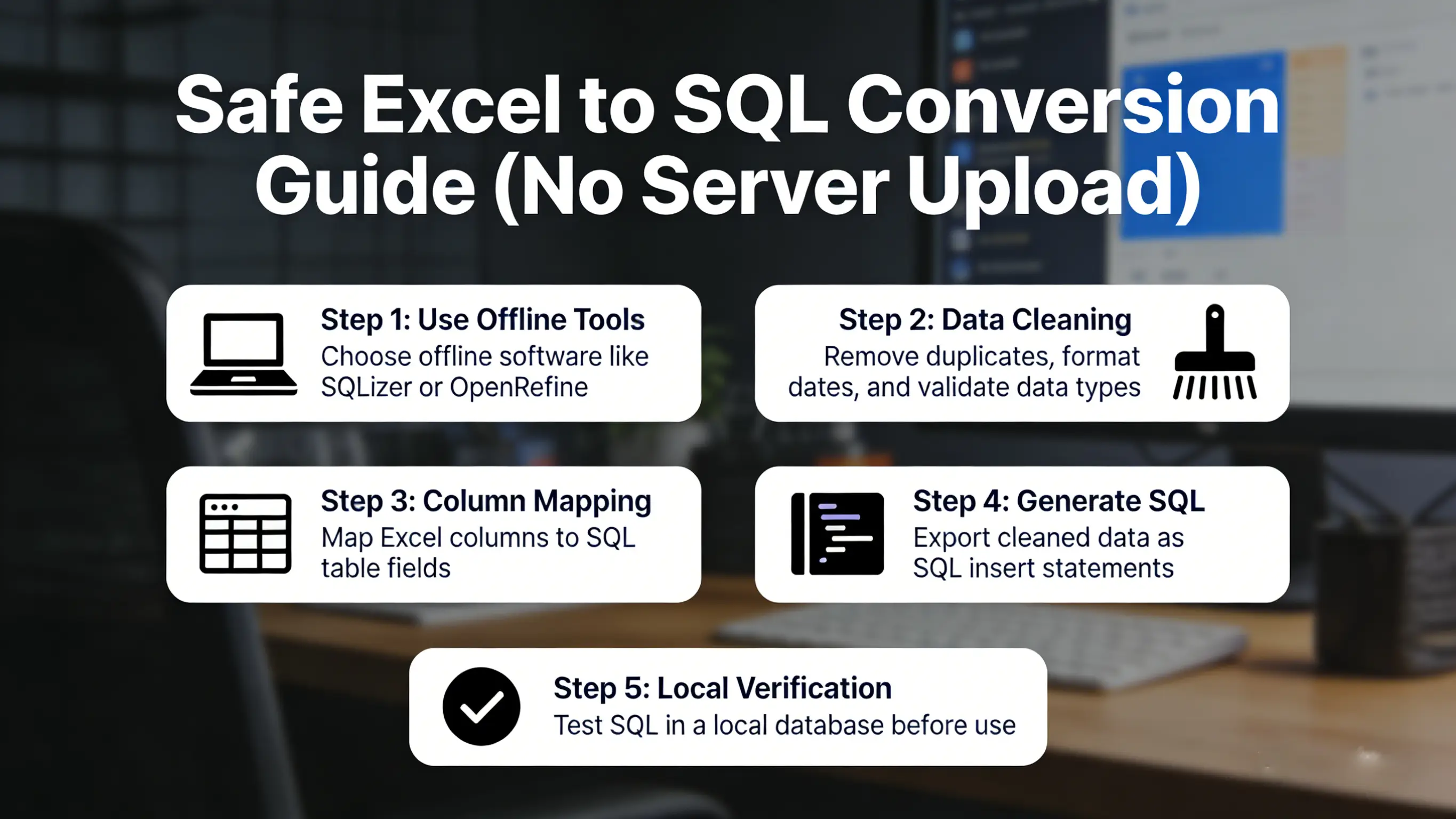
Real-world Excel data is messy. It contains merged cells, trailing spaces, and inconsistent formatting. Our converter includes built-in logic to handle these common issues:
- Trimming Whitespace: Automatically removes leading and trailing spaces from text fields to prevent "invisible" data mismatch errors later.
- Date Normalization: Excel stores dates as serial numbers. We convert them into standard ISO 8601 format (YYYY-MM-DD HH:MM:SS) that databases understand.
- Quote Escaping: If your data contains single quotes (e.g., "O'Connor"), we automatically escape them (e.g., "O''Connor") to prevent SQL syntax errors and injection vulnerabilities.
3. Custom Table and Column Mapping
You rarely want your database table to be named "Sheet1". Our interface allows you to specify the target Table Name before generation. Furthermore, the first row of your Excel data is treated as column headers. If you need to map these to specific database columns, you can simply edit the header row in our editable grid before clicking "Convert".
Step-by-Step: Converting Excel to SQL Securely
Follow this guide to turn your spreadsheet into a deployable SQL script in under 60 seconds.
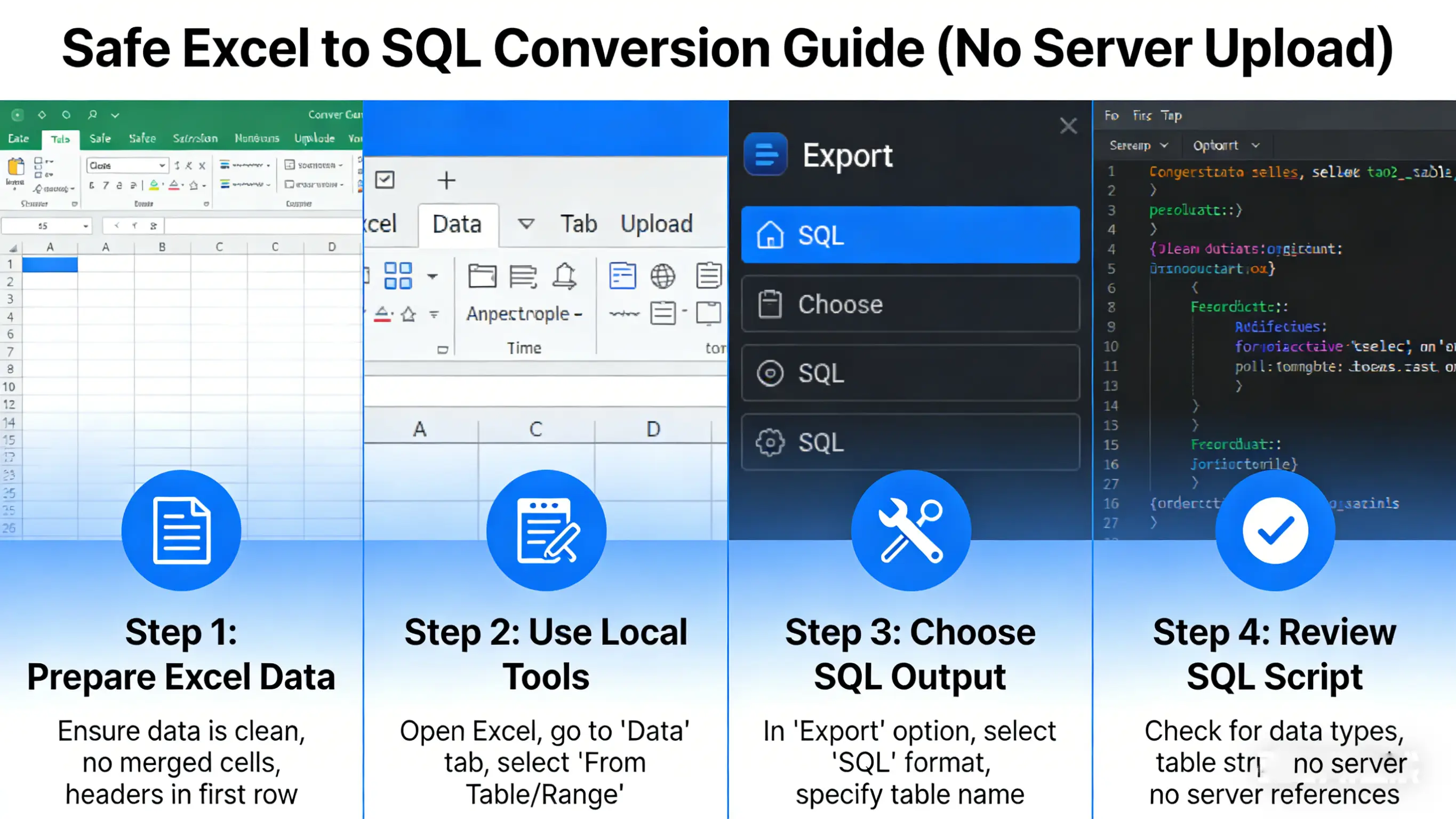
- Prepare your Data: Open your Excel file. Ensure your data has a clear header row. Remove any "title" rows above the headers so that row 1 contains your column names (e.g., id, name, email, created_at).
- Copy and Paste: Select your data range in Excel (Ctrl+C). Go to Developer Box and paste it into the input area (Ctrl+V). Alternatively, you can drag and drop your .xlsx or .csv file directly onto the drop zone.
- Review and Edit: Your data will appear in our interactive grid. Check that columns are aligned correctly. You can edit individual cells directly in the browser if you spot a typo.
- Configure Output:
- Enter your target Table Name (e.g.,
users). - Select your Database Dialect (e.g., MySQL).
- Toggle "Create Table" if you need the DDL statement included.
- Enter your target Table Name (e.g.,
- Generate and Run: Click the "Convert" button. The tool will generate a series of
INSERT INTOstatements. Click "Copy to Clipboard" and paste it into your database management tool (Workbench, pgAdmin, DBeaver, etc.) to execute.
Advanced Usage: Bulk Inserts and Performance
For small datasets (under 100 rows), individual INSERT statements are fine. But what if you have 50,000 rows? Running 50,000 separate queries will choke your database server due to network overhead and transaction logging.
Our tool supports Bulk Insert syntax generation. Instead of:
INSERT INTO users (name) VALUES ('Alice');
INSERT INTO users (name) VALUES ('Bob');
INSERT INTO users (name) VALUES ('Charlie');
We generate a single, optimized query:
INSERT INTO users (name) VALUES
('Alice'),
('Bob'),
('Charlie');
This method is 10x to 100x faster for large datasets because it reduces the number of round-trips to the server and allows the database to optimize the write operation in a single transaction.
Frequently Asked Questions (FAQ)
Is my data safe? Do you store my files?
Yes, absolutely. This tool runs 100% in your web browser. No data is sent to our servers, and we do not store any of your files. You can even disconnect from the internet after loading the page and the tool will still work. We believe in privacy by design.
Can I convert large Excel files?
Yes. Because the processing is local, the limit depends on your computer's RAM rather than a server limit. Most modern browsers can easily handle spreadsheets with tens of thousands of rows. For extremely large files (100k+ rows), we recommend splitting them into smaller chunks to avoid freezing the browser UI.
What SQL dialects are supported?
We support standard SQL, MySQL, PostgreSQL, SQLite, and SQL Server (T-SQL). You can select your target database in the options panel to ensure correct syntax for quotes and data types. If you need a dialect not listed, Standard SQL is usually a safe bet for basic INSERT statements.
How do you handle special characters?
We automatically escape special characters to prevent SQL errors. For example, single quotes within text (like "It's") are doubled ("It''s") which is the standard SQL escaping method. We also handle backslashes and newlines correctly depending on the selected dialect.
Can I customize the column names?
Yes. The tool assumes the first row of your pasted data contains the column headers. You can edit these headers directly in the grid view before generating the SQL. This is useful if your Excel headers don't match your database column names exactly (e.g., changing "First Name" to "first_name").
Conclusion
Data security shouldn't come at the cost of productivity. By using a client-side Excel to SQL converter, you get the best of both worlds: the speed of automation and the security of local processing. Whether you are a solo developer or working in a large enterprise, this tool empowers you to handle data migrations safely and efficiently.
Stop risking your data with server-side uploads. Stop wasting time with manual typing. Try the Developer Box Excel to SQL converter today and streamline your database workflows.