
Why is JSON formatting crucial for frontend debugging?
The Nightmare of Unreadable Data
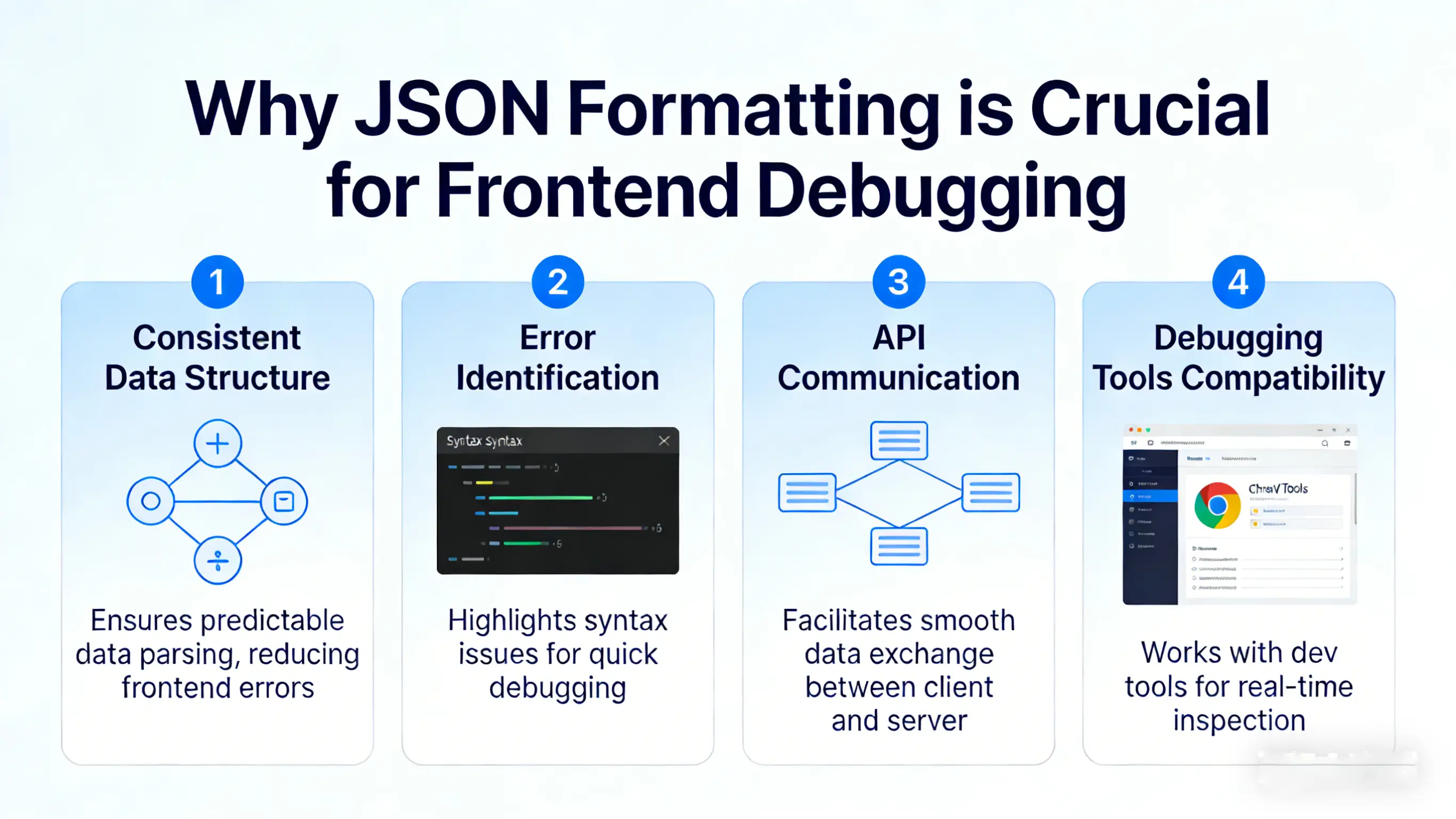
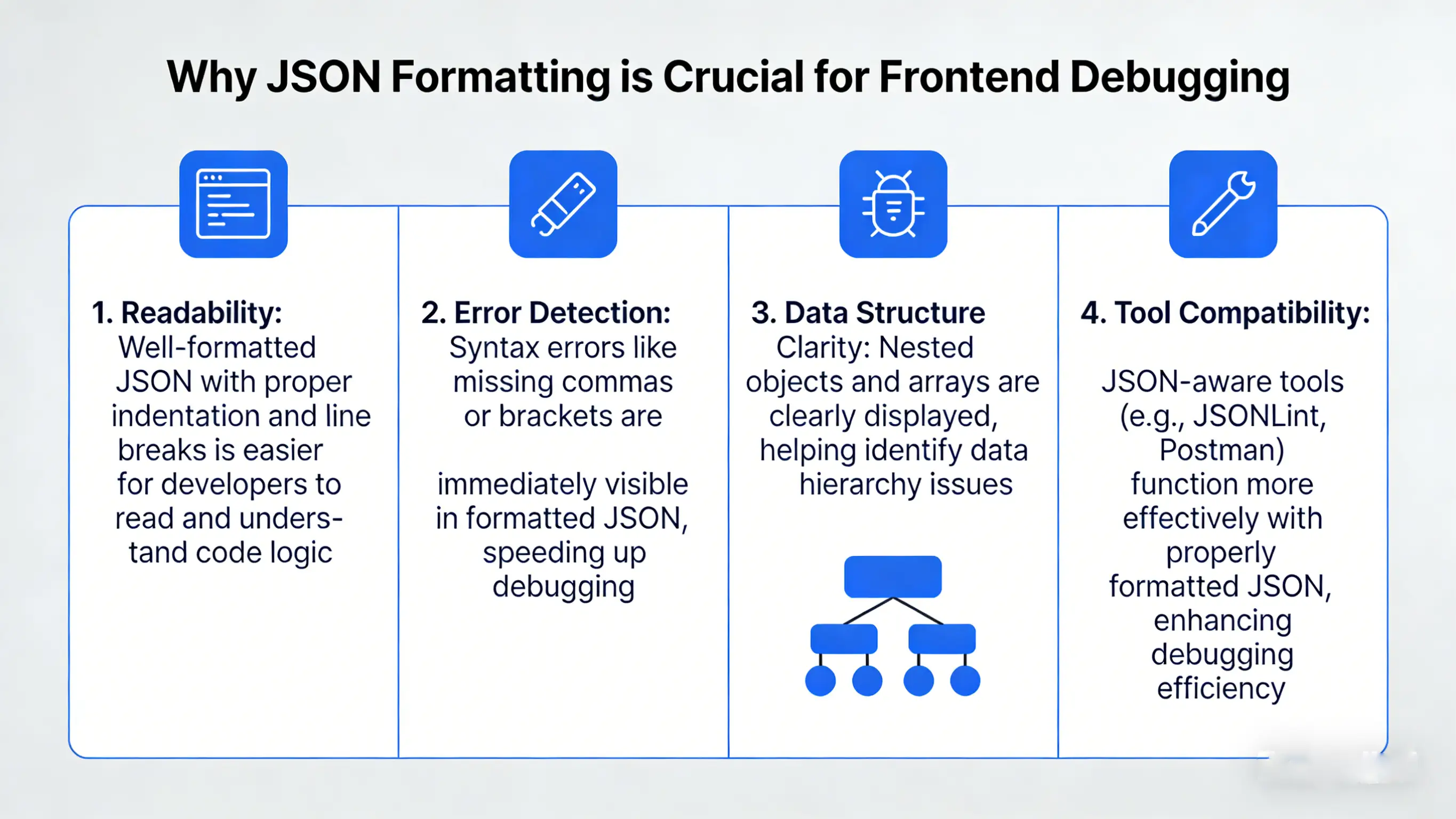
In the world of modern web development, JSON (JavaScript Object Notation) has become the de facto standard for data exchange. However, APIs often return data in a minified format to save bandwidth. While efficient for machines, this "wall of text" is a nightmare for developers trying to debug an issue. A single line of 10,000 characters is impossible to scan for errors, missing keys, or incorrect data types.
Debugging without proper formatting is like trying to find a needle in a haystack while wearing a blindfold. You waste valuable time manually adding line breaks or squinting at a raw string, missing the obvious syntax errors that are breaking your application.
What Makes JSON So Popular Yet So Fragile?
JSON was derived from JavaScript object literals, but it is much stricter. Douglas Crockford specified it as a "fat-free" alternative to XML in the early 2000s. Its simplicity is its strength—it maps directly to data structures in most programming languages (objects, arrays, strings, numbers, booleans, and null).
However, this simplicity comes with a cost: fragility. Unlike JavaScript, JSON does not forgive minor syntax deviations. A single misplaced comma or a forgotten quote can render the entire payload invalid, causing API calls to fail and applications to crash. Understanding these strict rules is the first step to mastering frontend debugging.
Top 5 Common JSON Syntax Errors
Even senior developers make these mistakes. Here are the most frequent culprits that break JSON parsers:
1. Trailing Commas
In JavaScript, { "a": 1, } is valid. In JSON, it is a syntax error. The last element in an object or array must not have a comma.
// ❌ Invalid JSON
{
  "users": [
    "Alice",
    "Bob", // Error: Trailing comma
  ]
}

// ✅ Valid JSON
{
  "users": [
    "Alice",
    "Bob"
  ]
}
2. Single Quotes
JSON requires double quotes (") for both keys and string values. Single quotes (') are strictly forbidden.
// ❌ Invalid
{ 'name': 'Alice' }

// ✅ Valid
{ "name": "Alice" }
3. Comments
JSON does not support comments. You cannot use // or /* */ to annotate your data. If you need configuration files with comments, consider using JSONC (JSON with Comments) or YAML, but remember that standard JSON.parse() will fail.
4. Unquoted Keys
In JavaScript objects, keys like name: "Alice" are valid. In JSON, all keys must be strings enclosed in double quotes: "name": "Alice".
5. Hidden Characters
Copy-pasting from rich text editors or chat apps can introduce invisible characters like non-breaking spaces (\u00A0) or smart quotes (“ instead of "). These are often invisible to the naked eye but will cause parsing errors.
Comparison: How to Format JSON?
Developers typically use one of three methods to make JSON readable. Let's compare them to see which one offers the best balance of speed, security, and utility.
| Method | Security | Speed | Convenience | Features |
|---|---|---|---|---|
| IDE Plugins (VS Code) | High (Local) | Medium (Context switch) | Medium | High |
| Server-side Formatters | Low (Data Upload) | Medium (Latency) | High | Basic |
| Techory (Client-side) | High (No Upload) | Instant | High (Browser-based) | Advanced (Validation) |
Why Techory is Your Best Debugging Companion
Our JSON Formatter is designed with the professional developer in mind. Unlike generic online tools that might log your data, Techory operates entirely within your browser using client-side JavaScript.
- Privacy First: Your JSON often contains sensitive API keys, user PII, or internal configuration details. With our tool, this data never leaves your device. You can even use it offline.
- Instant Validation: It doesn't just prettify; it validates. If you pasted invalid JSON, our tool immediately highlights the exact line and character causing the syntax error, saving you minutes of frustration.
- Zero Friction: No login, no ads, no paywalls. Just open the tab, paste your code, and get back to work.
Advanced JSON Techniques for Developers
Beyond simple formatting, mastering JSON involves understanding its limitations and advanced handling techniques.
Handling BigInt (Large Numbers)
Standard JSON has a major limitation: it uses double-precision floating-point numbers. This means integers larger than 2^53 - 1 (about 9 quadrillion) lose precision. For example, a Twitter Tweet ID might change from 1234567890123456789 to 1234567890123456800 during parsing.
Solution: When dealing with large IDs in JavaScript, always transmit them as strings in your JSON ("id": "123...") rather than numbers. Our formatter preserves these values correctly.
JSON Schema Validation
For enterprise applications, "looking right" isn't enough. You need automated enforcement. JSON Schema is a vocabulary that allows you to annotate and validate JSON documents. It works like a contract for your API data.
{
  "type": "object",
  "properties": {
    "age": { "type": "integer", "minimum": 0 }
  },
  "required": ["age"]
}
Tools like ours are the first step in this pipeline—verifying syntax before you even get to schema validation.
JSON vs. XML vs. YAML: When to Use What?
JSON isn't the only player in town. Here is a quick breakdown of when to use which format:
- JSON (JavaScript Object Notation): Best for web APIs and mobile apps. It is concise, easy to parse, and native to the browser.
- XML (eXtensible Markup Language): Best for enterprise systems requiring strict schema validation and complex document structures (like SOAP). It is verbose but robust.
- YAML (YAML Ain't Markup Language): Best for configuration files (Docker, Kubernetes). It is human-readable and supports comments, but whitespace sensitivity can be tricky.
Frequently Asked Questions (FAQ)
Is my JSON data safe?
Yes. All processing happens locally in your browser. We do not transmit or store any of your data on our servers.
What is the difference between Format and Minify?
Format (or Beautify) adds whitespace and indentation to make the code human-readable. Minify removes all unnecessary characters (spaces, newlines) to reduce file size for machine processing and bandwidth savings.
Can it handle large JSON files?
Yes, it can handle significantly large files because it uses your computer's memory. However, extremely large files (hundreds of MBs) might slow down the browser interface. We recommend using specialized CLI tools like jq for gigabyte-sized files.
How do I validate JSON syntax errors?
Simply paste your code into our editor. If there is a syntax error, the editor will show a red error indicator. Hovering over the error will reveal a detailed message explaining what went wrong (e.g., "Unexpected token } in JSON at position 42").
Does it support JSONC (Comments)?
Standard JSON does not support comments. However, our editor is lenient and can often display JSONC, but strictly speaking, you should remove comments if you intend to use the data in a standard JSON parser.
Conclusion
Effective debugging starts with clear data visibility. By using a secure, client-side JSON Formatter, you can quickly diagnose API issues, validate data structures, and optimize your workflow without compromising on security.
Whether you are fixing a production bug, optimizing a payload for mobile, or just learning the syntax, having a reliable tool in your belt is essential. Bookmark Techory today—your future self will thank you when you're debugging a 10,000-line JSON response at 2 AM.